.png)
In shared mobility, every trip depends on location. Cars, scooters, mopeds, and bikes move across the city throughout the day, and operators need clear rules for where vehicles can be used, parked, or returned.
Without digital boundaries, vehicles can leave the service area, end up in restricted locations, or be parked in places where rentals should not be completed. For micromobility businesses, this can quickly lead to city complaints, support requests, relocation costs, and a poor user experience.
Geofencing helps operators turn areas on the map into practical operating rules inside the shared mobility platform.
What is geofencing in shared mobility?
Geofencing allows shared mobility operators to create virtual zones on the map and apply specific rules to each area.
These zones can define where users are allowed to drive, where rentals can start or end, where rental termination is forbidden, and where speed limits or alerts should apply.
For example, an operator can create a city-wide drive zone, a rent end zone near a transport hub, a restricted zone around a private area, or a speed-limited zone for scooters in a busy pedestrian district.
Instead of checking these rules manually, the platform applies them based on the vehicle’s location.
How CT Mobility zones work
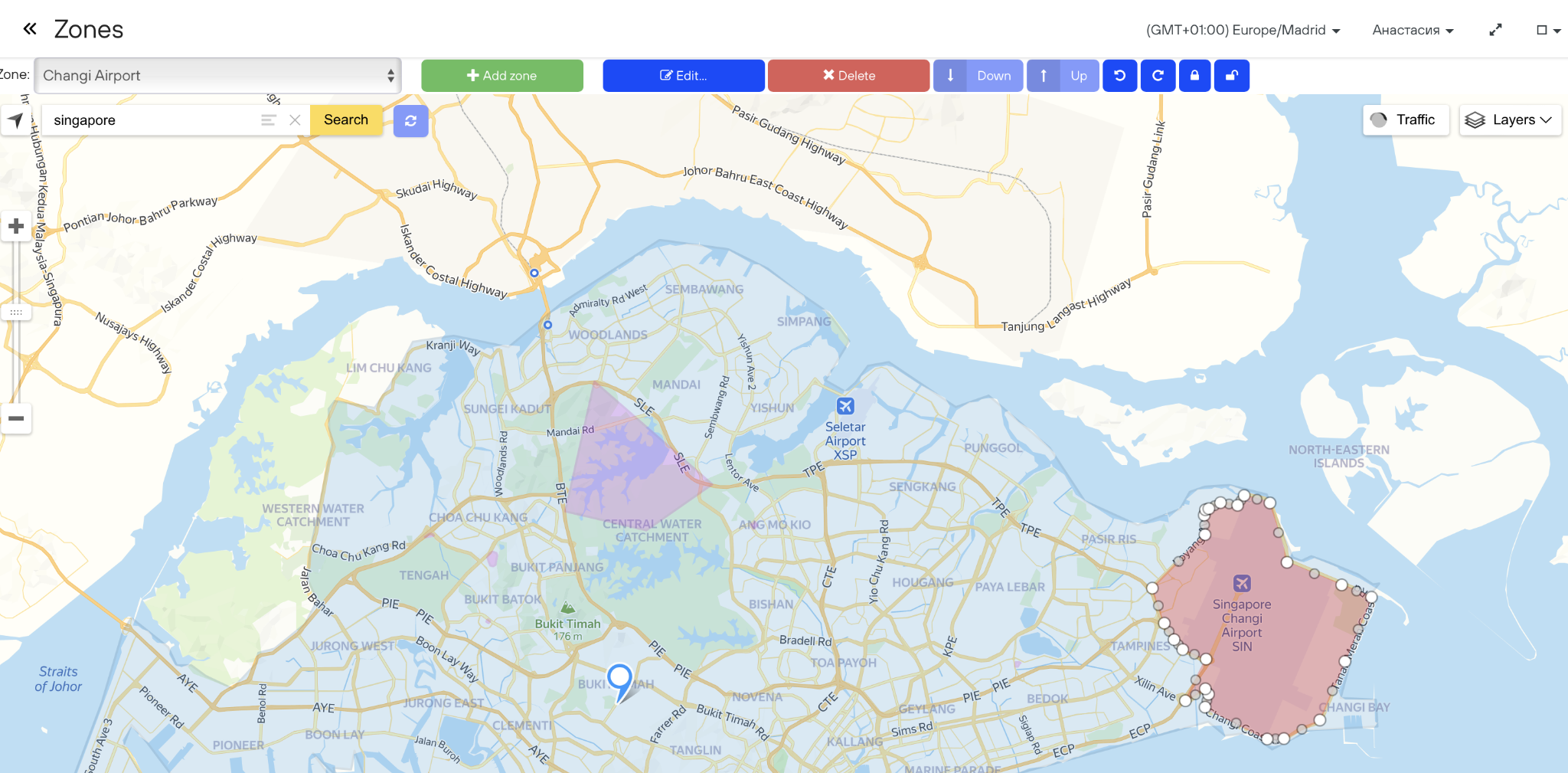
In CT Mobility, operators can create and manage zones from the admin panel. Zones can be drawn directly on the map, edited when operating rules change, or removed when they are no longer needed.
Each zone can have its own type, name, priority, active period, and additional settings. The zone name can also appear in the vehicle list, helping operators quickly understand where a vehicle is located.
CT Mobility supports several zone types for different shared mobility scenarios.
1. Drive zones
A Drive zone defines where users can drive vehicles and switch them into Parking mode during an active rental.
If a vehicle leaves the allowed Drive zone, the user receives a push notification asking them to return to the permitted area. Client support managers also receive an alert, and the vehicle is marked in the “Out of the drive zone” filter.
For scooter sharing and other micromobility services, CT Mobility can also be configured to block the engine automatically after the vehicle leaves the zone. This option is usually not applied to cars for safety reasons.
Drive zones are useful for keeping vehicles inside the operating territory and reducing the number of trips that end far outside the service area.
2. Rent end zones
A Rent end zone defines where users can start and finish rentals.
If a user tries to end a rental outside the designated Rent end zone, the action is not available to the user. In this case, only client support managers can complete the rental through the vehicle card.
Rent end zones can also be configured as bonus or paid zones. For example, an operator can encourage users to return vehicles to preferred areas by applying a bonus, or charge extra for ending a rental in a paid zone.
This is especially useful for carsharing, scooter sharing, airport locations, campuses, business districts, and other areas where return rules need to be controlled.
3. Rent end forbidden zones
A Rent end forbidden zone prevents users from ending a rental in specific areas.
Users may still switch the vehicle to Parking mode during an active rental, but they cannot finish the rental inside the restricted area.
This helps prevent vehicles from being left in places where returns are not allowed, such as private property, restricted streets, event areas, parks, or locations with specific city rules.
Additional zone settings in CT Mobility
CT Mobility zones include additional settings that help operators adapt geofencing to different business models, vehicle types, and city requirements.
Zone priority
When several Drive zones overlap, CT Mobility can apply rules based on priority. A zone with a higher priority value becomes dominant.
This is useful when operators need different rules for different parts of the same city. For example, a general city zone may allow one speed threshold, while a smaller residential or pedestrian area inside it may require a lower threshold.
If overlapping zones have the same priority, CT Mobility applies the lowest speed limit.
Speeding alert threshold
Operators can set a speed limit that triggers a speeding alert. This helps monitor driving behavior and react when users exceed the allowed speed in a specific zone.
Speed mode
For scooters, CT Mobility can apply a maximum allowed speed inside a zone. This can be useful for micromobility operators that need to reduce scooter speed in selected areas, such as pedestrian streets, parks, or crowded city centers.
Active period
Zones can be active all the time or only during specific days and hours. For example, an operator can activate special rules during weekends, events, night hours, or limited operating periods.
Large scale marker
Operators can add an icon for small zones in the mobile app. This helps users recognize important zone locations when the map is zoomed out and the full zone contour is not visible.
Why geofencing matters for micromobility and shared mobility operators
Geofencing is not just a map feature. It is one of the core tools for managing daily fleet operations.
Better control over service areas
Operators can define where vehicles should remain available and reduce cases where cars, scooters, or mopeds leave the target operating area.
Clearer rules for users
Users can see where they are allowed to drive, park, or end a rental. This reduces confusion and helps prevent avoidable mistakes.
Fewer support requests
When service areas, parking rules, and rental restrictions are built into the app, support teams spend less time solving issues manually.
Better parking management
For scooter sharing and bike sharing, parking control is one of the most important operational challenges. Geofencing helps guide users to the right areas and prevent rental completion where parking is not allowed.
Support for city requirements
Many cities set rules for parking, speed limits, no-ride areas, and operating zones. Geofencing helps operators reflect these rules inside the app and admin panel.
More flexible fleet operations
Operators can create different rules for different zones, vehicle types, time periods, and business scenarios.
Geofencing for different shared mobility models
Geofencing can support different types of shared mobility services.
For carsharing, operators can use geofencing to manage service areas, station-based zones, airport zones, corporate zones, paid return areas, and locations where rental termination should be restricted.
For scooter and bike sharing, geofencing is often used to manage parking zones, no-parking areas, speed limits, and city-specific restrictions.
For moped sharing, operators can use geofencing to control where vehicles can be used, parked, and returned.
This makes geofencing useful for both local mobility startups and larger operators managing fleets across several districts or cities.
Geofencing in CT Mobility
CT Mobility includes geofencing tools as part of the shared mobility platform. Operators can create different types of zones, configure speed-related rules, set zone priorities, manage active periods, and apply different return or parking conditions.
Geofencing works together with CT Mobility’s vehicle map, booking logic, user app, admin panel, alerts, and fleet management tools. This gives operators more control over where vehicles are available and how users interact with the fleet.
A practical tool for daily fleet management
In shared mobility, location affects almost every part of the business: vehicle availability, parking, user experience, support workload, city compliance, and fleet efficiency.
CT Mobility’s geofencing tools help operators easily manage these location-based rules directly inside the platform.
For shared mobility and micromobility businesses, this means better control over fleet movement, clearer rules for users, and fewer issues caused by vehicles being used or returned in the wrong places.
Launch your vehicle sharing app in just 15 days with CT Mobility!
No setup fees. Unlimited features.
Free trial period.